
Self-Publishing & KDP
KDP Cover Rejected? 8 Common Problems and How to Fix Them
Was your KDP cover rejected? Diagnose cover-size, spine, bleed, safe-zone, resolution, font, barcode, and PDF errors using this practical guide.
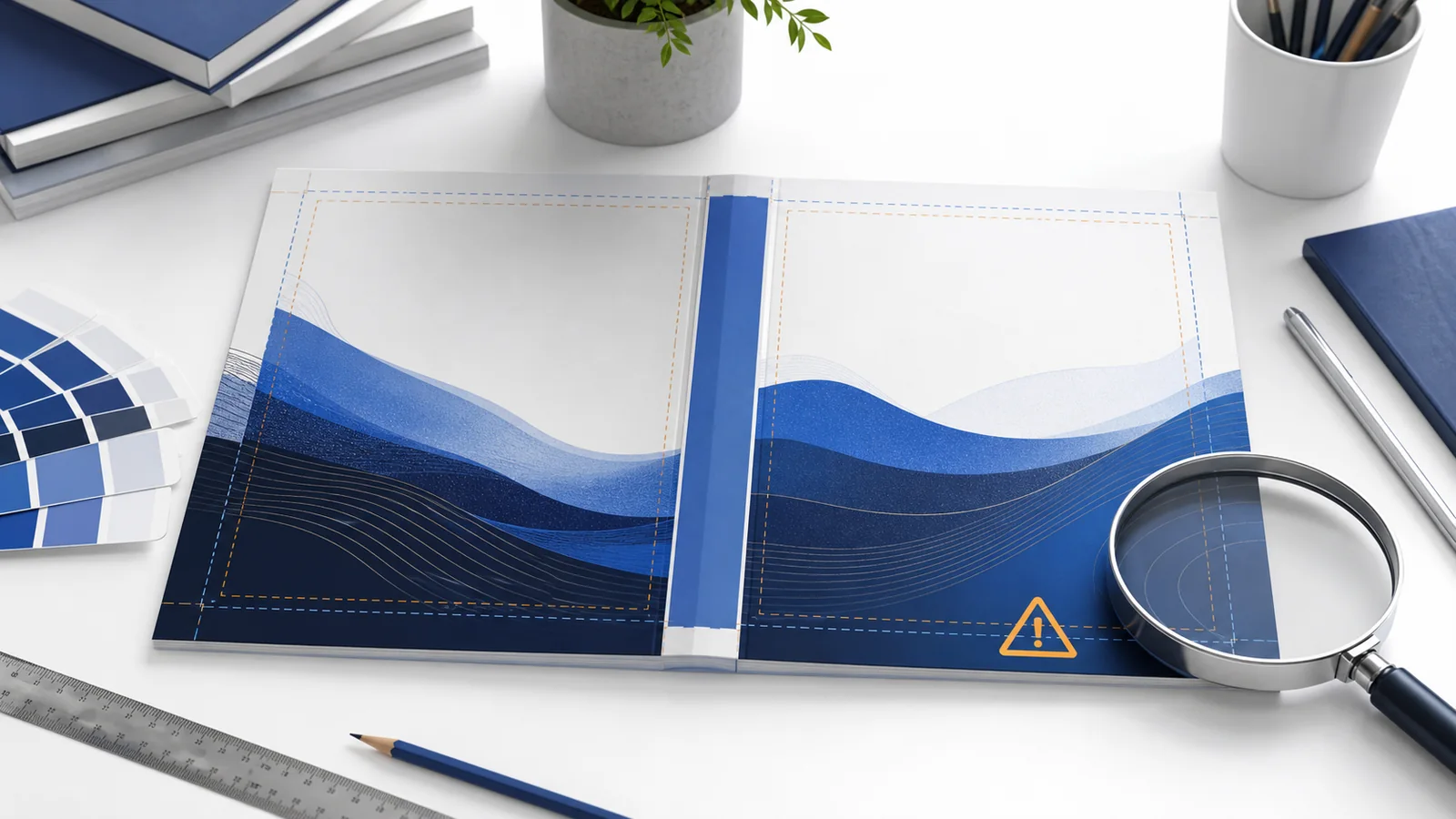
If KDP rejects a paperback cover, the problem is usually measurable and fixable. Common causes include the wrong full-wrap dimensions, an outdated spine width after the page count changed, missing bleed, important content outside the safe area, spine text on a book that is too short, low-resolution images, unembedded fonts, transparency problems, or an incorrectly prepared PDF. Do not stretch the file until the warning disappears—identify the actual specification that failed.
Start by translating the KDP cover error
| KDP symptom | Likely cause | Corrective action |
|---|---|---|
| Expected cover size does not match submitted size | Wrong trim, spine, paper, page count, or bleed | Generate a new official template using final book details |
| Background does not extend far enough | Artwork stops at trim instead of bleed | Extend background to the outside edge of the template |
| Text or image outside margins | Important content crosses a safe boundary | Move it inward; do not merely shrink the entire PDF |
| Spine text not allowed | Book has fewer than 79 pages | Remove spine text and rebuild the cover |
| Low image quality | Raster artwork is below required resolution | Replace with a higher-resolution source at final size |
| Font or transparency warning | Resources were not embedded or flattened correctly | Correct the source file and re-export a compliant PDF |
1. The full-cover size is incorrect
A paperback cover is not a front cover enlarged to include a back. It is one precisely sized page containing the back cover, spine, front cover, and bleed. KDP compares the submitted PDF with the expected dimensions based on the book setup.
The official relationship is:
- Full width: bleed + back-cover width + spine width + front-cover width + bleed.
- Full height: bleed + trim height + bleed.
That relationship is useful for understanding the error, but the safest production method is KDP’s cover calculator and template generator. Enter the final ink and paper choice, trim size, and page count. Design on the generated template rather than relying on a remembered example from another book.
Do not stretch an old cover
Stretching can distort faces, typography, logos, and artwork while lowering effective resolution. Adding a strip to one side can move the spine and front-cover alignment. Return to the editable design, update the canvas to the correct full-wrap size, and reposition each region intentionally.
2. The spine width uses the wrong page count or paper
Spine width is not selected by eye. It depends on final page count and paper thickness. White, cream, premium-color, and standard-color options do not all use the same multiplier. A cover calculated for 200 white-paper pages will not necessarily fit 200 cream-paper pages.
Page count can change when you adjust trim size, margins, fonts, line spacing, chapter starts, images, or front/back matter. Even a small editorial correction can reflow later pages. That is why the paperback interior should be finalized before the cover template is generated.
If KDP reports a spine or full-size mismatch, compare the page count shown in the current Bookshelf setup with the PDF’s actual final page count and the values used to build the cover.
3. The cover artwork is missing bleed
All KDP paperback covers require bleed. Background colors and images intended to reach the finished edge must continue 0.125 inch (3.2 mm) beyond the top, bottom, and outside trim edges. This extra artwork is cut away during manufacturing and prevents thin white slivers from appearing after small trim variations.
A common mistake is creating the PDF at the correct overall size but leaving white space between the artwork and the PDF edge. The canvas passes one check while the background fails the bleed check. Extend the actual background—not just the page—to the template’s outer boundary.
4. Important text or artwork is outside the safe area
Bleed is for expendable background artwork. The title, subtitle, author name, logos, review quotes, back-cover copy, and essential images belong inside safe areas. Content near a trim or fold line may shift, be cut, or wrap onto the wrong region.
The spine has its own safe area because binding varies slightly. Amazon’s cover guidance requires space between spine text and the fold edges. Follow the official template rather than drawing fold lines by eye.
Protect the barcode area
If KDP will add the barcode, leave the template’s barcode area free of important content. A complicated background may reduce barcode readability even if the book is accepted. If you supply your own barcode, follow the current size, resolution, color, and placement requirements.
5. The book is too short for spine text
KDP requires at least 79 pages before a paperback can carry spine text. A cover for a shorter book should have a blank spine area, though the background design may still wrap across it. KDP Cover Creator may use a slightly different operational threshold, so follow the tool being used.
Do not reduce the title to a tiny size or rotate it differently to make it fit. If the page count is below the requirement, remove spine text. Artificially adding blank pages solely to create a printable spine can make the book feel padded and may harm the reading experience.
6. Cover images are too low-resolution
KDP’s paperback submission guidance calls for images of at least 300 DPI. Effective resolution matters at the final printed size. A small stock image may be labeled 300 DPI in metadata but fall far below that after being enlarged across a 6 × 9 cover.
Replace low-resolution assets with properly licensed, higher-resolution originals. Avoid screenshots, social-media downloads, and images repeatedly saved through messaging apps. Inspect the final PDF at high zoom for pixelation, compression artifacts, halos, and AI-generated details that do not hold up in print.
7. Fonts are not embedded or are not licensed
Fonts must be embedded so the print system can reproduce the intended typography. If embedding is prohibited by the font license, choose a font licensed for print production and embedding. Converting text to outlines can solve limited display issues but removes editability, increases complexity, and should not replace a clean licensed-font workflow.
Check the exported PDF’s font properties. Confirm that the title, subtitle, spine, back-cover copy, and small legal text all use embedded resources and remain legible.
8. Transparency, layers, marks, or PDF construction is invalid
KDP asks publishers to flatten transparent objects and layers and to remove crop marks, trim marks, comments, annotations, placeholder text, and unnecessary metadata. A design can look normal in the source application while the exported PDF contains unsupported or invisible objects.
Export the cover as one PDF page. Do not submit separate front, spine, and back pages. Do not include the downloaded template itself as visible artwork. Remove guide layers before export while preserving the intended canvas size and bleed.
A reliable cover preflight workflow
- Finalize the paperback interior and note its exact page count.
- Confirm the KDP trim size, ink, paper, bleed choice, and cover finish.
- Generate a fresh official KDP cover template.
- Set the design canvas to the template’s full-cover dimensions.
- Position back, spine, and front content inside their safe areas.
- Extend all edge backgrounds through bleed.
- Check image resolution at final size and confirm font licenses.
- Flatten required resources and export a single-page PDF without marks.
- Review the PDF dimensions, fonts, images, and edges before uploading.
- Use Print Previewer, correct every meaningful warning, and order a proof.
Frequently asked questions
Why does KDP say my expected cover size is different?
The submitted PDF does not match the dimensions calculated from the current trim size, page count, paper, and bleed. Generate a new template using the current book setup.
Can I resize my existing cover to make it pass?
Do not stretch the complete design. Resize the editable canvas and reposition the back, spine, front, and bleed intentionally. Otherwise you may distort artwork or misalign the spine.
How much bleed does a KDP cover need?
KDP currently specifies 0.125 inch (3.2 mm) on the top, bottom, and outside edges. Use the official template for the exact full-wrap geometry.
Can a 60-page paperback have spine text?
No. KDP requires at least 79 pages for printed spine text. Remove it while allowing background artwork to wrap across the spine.
Should my KDP cover be RGB or CMYK?
Follow Amazon’s current color guidance and your design workflow rather than treating color mode as the automatic cause of every rejection. Dimensions, bleed, safe areas, resources, and PDF construction are more common technical checks. Always order a proof because printed color differs from a backlit screen.
Do I need a new cover when the page count changes?
Usually yes. Page count affects spine width and therefore total cover width. Regenerate the template and update the editable cover.
Official references
- Create a Paperback Cover
- Paperback Submission Guidelines
- Fix Paperback and Hardcover Formatting Issues
Cebooker Studio provides ebook and paperback cover design and paperback formatting with full-wrap cover support.
Still receiving a KDP cover warning?
Send the exact warning, final trim size, page count, paper choice, and current cover file details. Cebooker can identify the mismatch and recommend the correct fix.