
Self-Publishing & KDP
KDP Paperback Margins & Bleed: Requirements, Settings & Fixes (2026)
Use the current KDP paperback margin and bleed requirements to set trim size, gutter, outside margins, and print-ready PDF dimensions correctly.
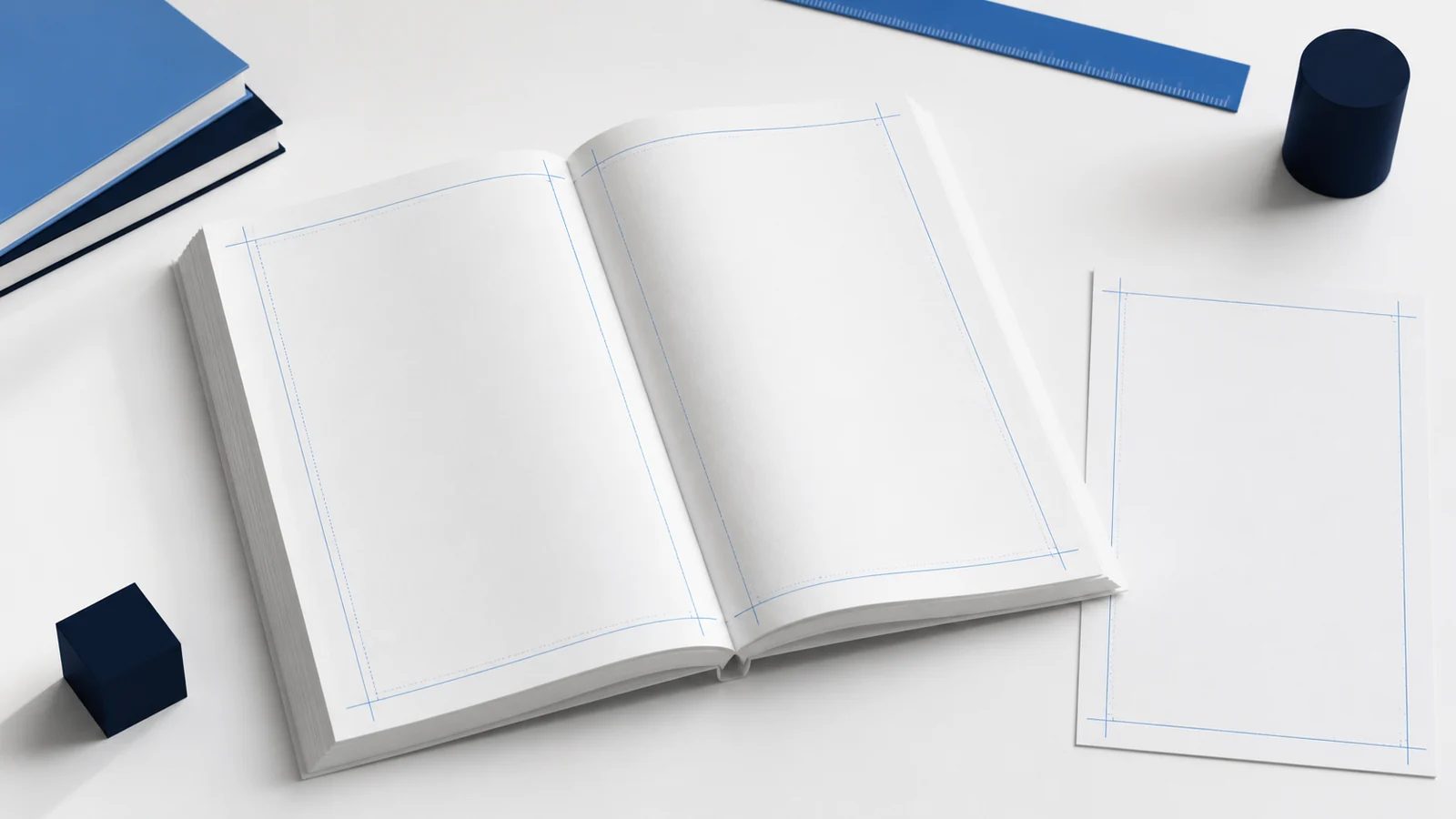
KDP paperback margins and bleed must be set for the final trim size, page count, and interior type before you upload. The inside margin (the gutter) gets wider as the book gets thicker. Outside text stays inside KDP’s safe margin, while artwork intended to print to the edge extends past trim as bleed. For a standard text-only paperback, start with the correct trim size and KDP’s page-count margin table; for a full-bleed interior, make the PDF larger than the finished trim size and keep important text out of the bleed area.
KDP margins and bleed at a glance
Choose the paperback trim size first. Then set the inside margin from the final page count, set the outside margin for either no-bleed or bleed pages, and export a PDF at the correct final page size. KDP’s Print Previewer is the final check; it can reveal a problem that a Word document or design canvas does not show.
| Decision | Use this approach | Why it matters |
|---|---|---|
| Text-only interior | Use the selected trim size and no-bleed margins | Text and objects stop inside the safe area; the finished page has a normal white edge. |
| Interior with edge-to-edge artwork | Use a bleed-sized PDF and keep key text inside the safe area | Backgrounds, photographs, or color blocks continue to the finished edge after trimming. |
| Thicker paperback | Increase the inside/gutter margin as page count rises | Text remains readable near the binding instead of disappearing into the spine. |
| Cover file | Use KDP’s current cover template after the interior page count is final | The paperback cover has separate wrap, spine, and bleed measurements. |
What trim size, gutter, margin, and bleed mean
Trim size is the finished page size
Trim size is the width and height of the paperback after it is cut. In the United States, 6 × 9 inches is common for many trade paperbacks, but it is not automatically right for every genre or market. Your trim size affects the page count, visual density, printing cost, cover template, and the PDF dimensions you need to export.
Set the trim size before the margins. If you change the page size later, revisit every margin, header, page-number, image, and cover decision. For a wider overview of the print workflow, see Cebooker’s Amazon KDP formatting requirements checklist.
The gutter is the inside margin next to the binding
The gutter is the inner margin where pages meet the spine. It is not merely a design preference: it creates enough space for a reader to see the inner lines without forcing the paperback flat. KDP’s minimum gutter requirement increases with page count because a thicker book loses more usable space at the binding.
Outside margins protect readable content
Top, bottom, and outside margins protect text, page numbers, rules, and images that should not be cut. A page with bleed uses a larger outside minimum because the printable artwork continues past the trim line. A generous margin can also make a book easier to read; a platform minimum is a safety threshold, not always the best typographic choice.
Bleed lets artwork reach the edge
Bleed applies when an image, background color, graphic, or other element should reach the physical edge of the finished page. The artwork extends beyond trim so a small variation in cutting does not produce a white sliver. Bleed is not an area for body text, page numbers, or essential labels. On a paperback interior, the inside edge by the binding does not receive bleed in the same way as the outside, top, and bottom edges.
Current KDP paperback margin requirements
Amazon KDP publishes minimum margins by final page-count range. The figures below summarize the current paperback submission guidance. They are useful for preflight, but review the live KDP documentation when you are ready to submit because specifications can change.
| Final page count | Minimum inside / gutter margin | Minimum outside margin — no bleed | Minimum outside margin — with bleed |
|---|---|---|---|
| 24–150 pages | 0.375 in / 9.6 mm | 0.25 in / 6.4 mm | 0.375 in / 9.6 mm |
| 151–300 pages | 0.5 in / 12.7 mm | 0.25 in / 6.4 mm | 0.375 in / 9.6 mm |
| 301–500 pages | 0.625 in / 15.9 mm | 0.25 in / 6.4 mm | 0.375 in / 9.6 mm |
| 501–700 pages | 0.75 in / 19.1 mm | 0.25 in / 6.4 mm | 0.375 in / 9.6 mm |
| 701–828 pages | 0.875 in / 22.3 mm | 0.25 in / 6.4 mm | 0.375 in / 9.6 mm |
These are minimums. A book with large type, footnotes, illustrations, page tabs, or a premium layout may need more breathing room. Avoid shrinking margins simply to reduce page count or printing cost; a crowded interior can harm readability and lead to preview warnings.
How to set KDP interior bleed correctly
First decide whether any element needs to print to the outer, top, or bottom edge. If not, select no bleed and keep all page content inside the no-bleed margins. If yes, make the interior a bleed document from the beginning rather than stretching a no-bleed PDF at the last minute.
For a bleed paperback interior, KDP’s guidance requires the file to extend beyond the selected trim size. In practical terms, the document is 0.125 inch wider and 0.25 inch taller than the finished trim: the extra width is on the outside edge, while the extra height is split across top and bottom. The exact workflow differs between Word, Pages, InDesign, Affinity Publisher, and other tools, so always test the final exported PDF in Print Previewer.
A dependable Word and PDF setup workflow
- Freeze the manuscript. Complete editing and remove unresolved tracked changes before serious layout work begins.
- Choose trim and paper options. Confirm the planned KDP paperback specifications before setting page size.
- Set mirror margins. Use a wider inside value for the gutter and make sure odd and even pages alternate correctly.
- Build paragraph styles. Use real paragraph, heading, and scene-break styles; do not build the layout with repeated spaces, tabs, or empty lines.
- Add print features. Apply headers, page numbers, section breaks, front matter, and blank pages consistently.
- Export a final PDF. Check page dimensions, embedded fonts, image quality, links where relevant, and the absence of crop marks or placeholder elements.
- Use Print Previewer. Review every warning and inspect a representative selection of pages, especially chapter openings, full-bleed pages, tables, and the first and last pages.
If you need a reliable print interior and a coordinated cover, Cebooker offers paperback book formatting and cover design. Authors releasing both formats can also compare the two production workflows in Ebook vs Paperback Formatting.
When professional paperback formatting is worth it
A simple text-only novel may be manageable with careful DIY setup and enough time for proofing. Professional help becomes more valuable when the manuscript has many images, tables, footnotes, callout boxes, worksheets, complex chapter hierarchy, multiple editions, or a deadline. The work is not only about attractive pages: it includes source-file hygiene, print geometry, font and image checks, export control, and a reliable response when KDP flags a file. If you are comparing DIY tools and services, read How Much Does Book Formatting Cost in 2026? before deciding what belongs in the scope.
Common KDP margin and bleed mistakes
Using one margin value for every page count
A 100-page book and a 500-page book do not have the same practical gutter. Re-check the inside margin after any edit that changes final page count.
Changing trim size after typesetting
Scaling an existing PDF to a new trim size can distort margins, image quality, page numbers, and line breaks. Reflow and export from the source document instead.
Adding bleed only at export
A larger PDF canvas does not create real bleed if the artwork stops at trim. Extend edge-to-edge elements deliberately, then keep important material inside the safe area.
Letting KDP scale the manuscript without checking it
Automatic adjustments may solve a dimensional mismatch but can leave an interior with awkward text density or a layout you did not approve. Treat any scaling message as a prompt to examine the source file.
Forgetting that the cover depends on page count
Even a small interior change can alter the spine width. Finalize the interior before ordering the full-wrap cover template or delivering a cover PDF.
KDP paperback preflight checklist
- Trim size matches the paperback setup in KDP.
- Final page count has been used to set the inside/gutter margin.
- Outside margins meet the appropriate no-bleed or bleed minimum.
- Bleed artwork extends past the outside, top, and bottom trim edges.
- Text, page numbers, and critical graphics remain inside a comfortable safe area.
- PDF pages all have the same correct dimensions and no accidental blank pages.
- Fonts are embedded and images are sufficiently sharp for print.
- Print Previewer warnings have been investigated, not ignored.
- The full-wrap cover was sized from the final interior page count and current KDP template.
Frequently asked questions
What margins should I use for a 6 × 9 KDP paperback?
Start with the KDP page-count table, not a generic 6 × 9 preset. A 24–150-page text-only paperback needs at least a 0.375-inch inside margin and at least a 0.25-inch outside margin. Use more room when the design or readability calls for it.
How much bleed does a KDP paperback interior need?
For a bleed interior, the final PDF is 0.125 inch wider and 0.25 inch taller than the selected trim size. That accommodates extension at the outside, top, and bottom edges. Confirm the current KDP setup guidance before export.
Do all paperback interiors need bleed?
No. Most text-led novels and general nonfiction books use no bleed. Choose bleed only when an element intentionally reaches the page edge.
Why is my KDP gutter warning appearing after editing?
Edits can change the page count enough to move the book into a new margin range. Recalculate the inside margin after significant revisions and regenerate the final PDF.
Can I use the same settings for KDP and IngramSpark?
The source manuscript may be similar, but each printer has its own current specifications and templates. Review the destination platform separately before upload.
Should I let KDP fix my margins automatically?
Use automatic scaling only after you understand the result. It may be acceptable for a simple file, but a professional interior should be checked page by page in preview and ideally against a printed proof.
Official KDP resources
- Set Trim Size, Bleed, and Margins
- KDP Paperback Submission Guidelines
- Format Your Paperback
- Fix Paperback and Hardcover Formatting Issues
- KDP Tools and Resources
Need a KDP paperback file checked before upload?
Send the manuscript, trim size, final page count, paper choice, intended platform, and any Previewer warning. Cebooker will help you identify the right margin, bleed, and PDF workflow.