
Self-Publishing & KDP
KDP Print Previewer: A Paperback & Hardcover Review Guide
KDP Print Previewer guide for paperback and hardcover authors: what to check, how to fix file issues, and when a proof copy still matters.
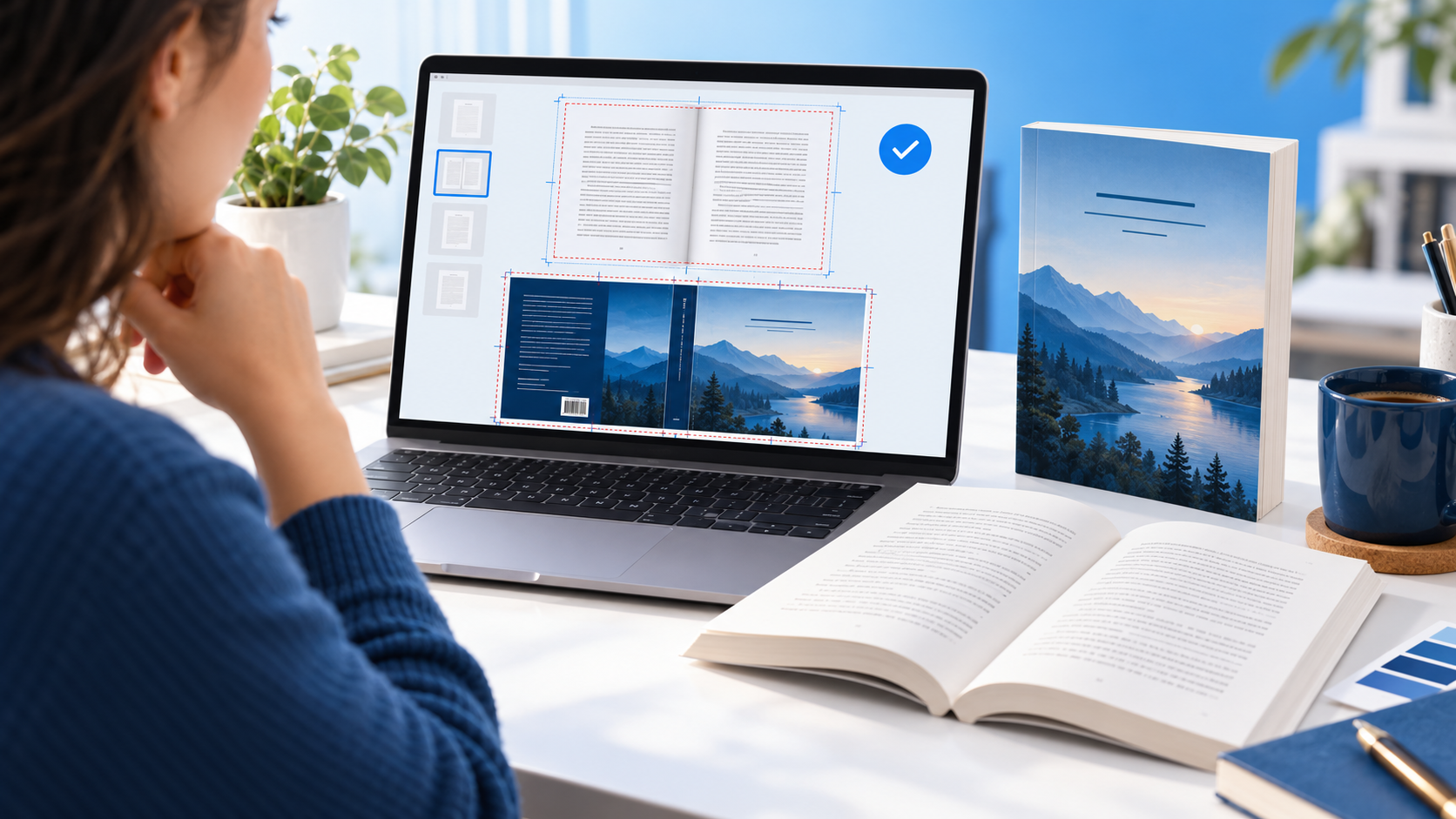
Direct answer: KDP’s Print Previewer is the final digital check for a paperback or hardcover before you submit it for publication. Use it after your interior and cover have uploaded to inspect page layout, trim and bleed, cover alignment, spine text, and the errors KDP requires you to fix. It is not a replacement for a physical proof; use both when your project calls for a hands-on print check.
What KDP Print Previewer does
Print Previewer is KDP’s browser-based review tool for paperback and hardcover content. After you upload your interior and cover on the Content tab, it displays the book before publication and flags errors that need to be corrected before you can submit. Amazon also notes that the Previewer can be used to download a digital proof PDF for a closer review.
That makes it a crucial bridge between production and publishing. It is where a professionally prepared file meets the selected trim size, paper, ink, bleed, binding, and cover measurements in KDP. A document can look perfect in Word, Affinity Publisher, InDesign, or a PDF reader and still need adjustment after the print workflow renders it.
For the underlying requirements, start with Amazon’s official instructions for uploading and previewing paperback and hardcover book content. They confirm that Print Previewer shows the book before publishing and checks for errors that must be fixed.
Prepare the right files first
Previewer works best when the production decisions are already final. For a print edition, KDP needs a separate interior manuscript and a full cover. A print cover is not a front-cover image: for a paperback, KDP requires one PDF containing the back cover, spine, and front cover. The final interior page count matters because it changes the spine measurement.
| Before previewing | Why it matters | Practical check |
|---|---|---|
| Final interior | Page count drives the print cover’s spine width. | Lock the manuscript before building the cover template. |
| Correct cover PDF | KDP expects the complete back, spine, and front as one file. | Export one flattened, print-ready PDF without template guides. |
| Matching print settings | Trim, bleed, paper and ink options affect the output. | Confirm the choices on the Content tab before launching Previewer. |
| Embedded production assets | KDP’s submission guidance calls for embedded fonts and images. | Run a PDF preflight in your design app before upload. |
If you are creating the cover outside KDP, use the official KDP cover calculator and template generator once the final page count is known. It creates a custom guide from the book’s binding, interior type, paper, reading direction, trim size, and page count. For help making the files themselves, see Cebooker’s paperback formatting and cover design service.
A practical KDP Print Previewer workflow
- Upload the final interior and cover. KDP recommends downloading the current files before you replace them, because previous versions cannot be downloaded after a new upload.
- Wait for file processing to finish. Do not judge a cover template or preview against an unfinished conversion.
- Launch Print Previewer from the Book Preview section. Review and resolve every issue that KDP identifies; these are blocking items.
- Move deliberately through the interior. Inspect the opening pages, chapter starts, page-number sequence, images, tables, blank pages, and final page. Check both ordinary pages and complicated spreads.
- Review the full cover spread. Check title/author text, the spine, barcode area, safe zones, background bleed, and whether essential details sit away from fold and trim boundaries.
- Revise the source file—not the preview. Make corrections in the original manuscript or cover design, export a new file, upload it, and repeat the review.
What to check in the preview
Interior pages
Look first for the errors that interrupt reading: missing or unexpectedly blank pages, incorrect pagination, page numbers in the wrong place, headers or footers too close to an edge, widows and orphans, tables that break poorly, and images that do not match their intended position. If an image or color block is meant to reach the page edge, confirm the interior was set up with bleed and exported as a PDF; KDP’s paperback guidance calls for PDF when the interior contains bleed.
Cover, spine, and safe zones
Use the on-screen guide areas as a production check. According to KDP’s cover requirements, cover files need bleed, and backgrounds that should run to the edge extend 0.125 in (3.2 mm) beyond the trim line. Keep important text and non-bleeding graphics inside the safe area. Paperbacks need at least 79 pages for spine text; with fewer than 79 pages, remove it rather than hoping the Previewer will make it work.
Print quality details
Previewer helps catch layout problems, but file quality still begins in the original PDF. KDP’s submission guidelines call for at least 300 DPI images, embedded fonts and images, flattened transparency/layers, and no crop marks, annotations, placeholder text, or file security. Those checks are especially worth revisiting if the preview shows a visual mismatch after conversion.
Print Previewer vs. a proof copy
Use Print Previewer before you submit because it is KDP’s error-checking and on-screen inspection step. Then decide whether a physical proof is appropriate. A proof lets you inspect the printed object: paper feel, binding, cover finish, real-world color, trim, and how the book reads in the hand. Previewer cannot show those physical properties.
For a fuller hands-on checklist, read our KDP proof-copy review guide. For a Kindle edition, use Kindle Previewer 4 instead; the tools serve different formats and should not be substituted for one another.
Frequently asked questions
Is KDP Print Previewer required?
KDP uses Print Previewer to flag errors that need fixing before submission. Launch it for every uploaded paperback or hardcover version and resolve required issues before continuing.
Can I use Print Previewer for a Kindle ebook?
No. Print Previewer is for paperback and hardcover content. For an ebook, use Kindle Previewer or KDP’s Online Previewer as appropriate.
Does a passed preview mean I can skip a proof copy?
Not necessarily. A passed preview confirms the digital file has cleared the tool’s checks; a physical proof adds an inspection of the printed product. Whether to order one depends on the project’s complexity and your tolerance for print surprises.
Why did my cover change after I uploaded a revised interior?
Page count affects spine width. If a revision changes the final interior page count, generate a new cover template, adjust the cover source, upload it, and preview again.
What should I do when Previewer shows an error?
Return to the original manuscript or cover source, correct the cause, export a fresh file, upload it, and relaunch Previewer. Do not edit only the previewed output.
Need a second set of eyes before KDP?
Cebooker can prepare your ebook or print files, build a compliant paperback cover, and help you move into KDP with a cleaner review cycle. Contact Cebooker about your book-formatting project.
About Cebooker Studio: Cebooker helps authors and publishers with Kindle EPUB formatting, paperback formatting, and book cover design.