
Self-Publishing & KDP
Kindle Previewer 4: A Practical KDP Review Guide
Kindle Previewer 4 guide for self-publishing authors: supported formats, device views, a practical review workflow, and when to use KDP Online Previewer.
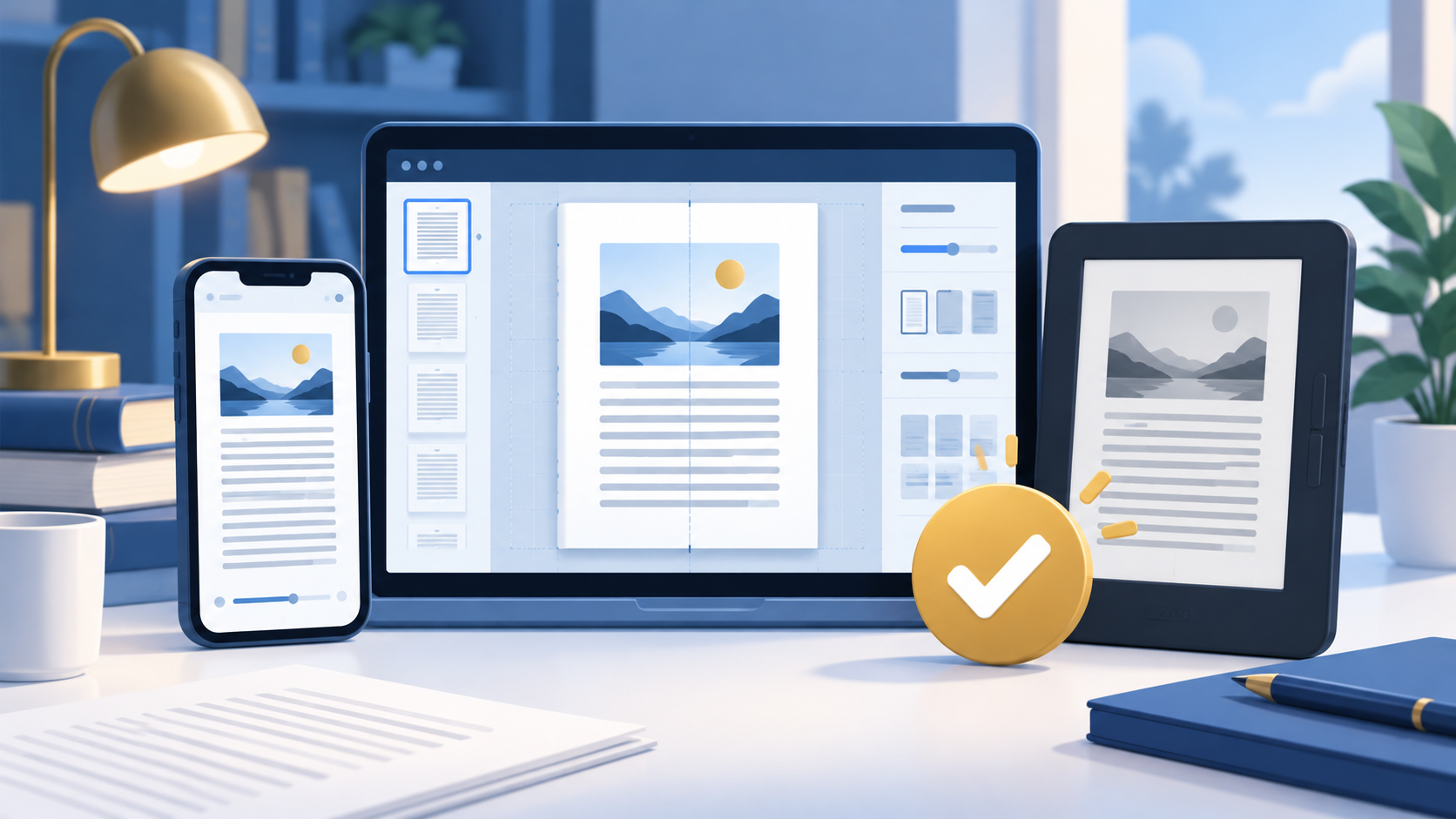
Direct answer: Kindle Previewer 4 is Amazon KDP’s current free desktop tool for checking how a Kindle ebook will look before publication. Use it while formatting to review your manuscript across device types, orientations, fonts, and sizes; then use KDP’s Online Previewer for the final uploaded-file check. Read Amazon’s official Kindle Previewer download and help page.
What Kindle Previewer 4 is for
Formatting an ebook is not finished when the file opens on a laptop. Reflowable Kindle books adapt to the reader’s screen, orientation, and font size, so a clean-looking source file can still reveal awkward image placement, broken links, crowded tables, or an unclear table of contents in another view.
Amazon positions Kindle Previewer as a free standalone desktop application to use while you format, so you can see whether the book looks as intended before publishing. Its current KDP help page identifies Kindle Previewer 4 as the current version and says that Kindle Previewer 3 and earlier are no longer supported. The same page says Previewer can show the typographic and layout improvements available through Enhanced Typesetting for eligible reflowable ebooks.
That makes it a review environment, not a replacement for source-file editing. When you find a problem, correct the DOCX, EPUB, HTML, or other original file, then reopen it and check the affected views again. If you would rather start with a production-ready file, Cebooker’s Kindle and EPUB formatting service is built around readable, cross-device ebook files.
Supported source formats and device views
Amazon’s current Previewer help page lists the following formats for opening ebooks in Kindle Previewer. It also notes that DOC and DOCX support is limited to English-language content. This is the app’s opening support—not a claim that every format is the best publishing choice for every book.
| Review input | What to check | Official context |
|---|---|---|
| .epub, .htm, .html, .xhtml, .opf | Reflow, hierarchy, links, images, lists and tables | Open directly in Previewer |
| .kpf | The Kindle Create output before upload | Open directly in Previewer |
| .doc, .docx | How the Word manuscript converts for Kindle | English-language content only |
| Tablet, phone and Kindle e-reader views | Screen-size, orientation, font and font-size changes | Preview Options supports these comparisons |
Previewer currently represents Fire Tablets, Kindle for Android, Kindle for iOS, and Kindle e-readers. Amazon also says you can change portrait or landscape orientation and vary the font type and size. Do not judge a reflowable book only at one comfortable setting: a reader’s choices are precisely what can expose an over-wide image, a brittle table, or a heading that lands in an awkward spot.
A practical Kindle Previewer 4 quality-review workflow
1. Start with the file you intend to improve
Keep an editable source file and open that version in Previewer. If a review turns up a problem, change the source rather than treating the preview as the master copy. For Word manuscripts, Amazon recommends Previewer to check that the ebook converted successfully.
2. Check the first pages, then change reading conditions
Begin at the cover, title page, copyright, visible table of contents, and first chapter. Then switch among tablet, phone, and e-reader views; test both orientations and more than one font size. Check that the book still has comfortable reading flow rather than trying to force print-style page-by-page control. Need a reliable navigation baseline? See our Kindle ebook table-of-contents checklist.
3. Inspect recurring elements in batches
Amazon documents a View All filter for specific elements such as images, lists, and tables. Use it deliberately: scan every image for useful placement and readable embedded text, every list for indents that remain sensible, and every table for legibility. It is faster and less error-prone than hoping you encounter every instance during a casual read.
4. Read through the entire book
Use normal navigation for a focused read, and use Auto-Advance View when you want an end-to-end visual pass. Amazon says Auto-Advance can automatically turn through the ebook and lets you pause or change speed. That makes it a useful last sweep for blank-looking pages, repeated material, sudden spacing changes, and badly scaled imagery.
5. Check navigation, links and accessibility details
Open the visible table of contents and follow each entry; then look for chapter-start consistency and links that lead where readers expect. For meaningful images, clear heading structure, links, contrast and tables, pair this pass with our Kindle ebook accessibility guide. Amazon’s quality guidance recommends Kindle Previewer for reviewing ebooks across Kindle devices and apps.
6. Confirm Enhanced Typesetting eligibility where relevant
For reflowable EPUB, DOC/DOCX, and HTML books, Amazon says you can use View > Book Information to see whether Enhanced Typesetting is supported. Treat that as a fact to check in the app for your specific file, not as a design promise. If a complex manuscript needs a professional review before upload, Cebooker can prepare KDP-ready Kindle and EPUB formatting.
When to use KDP’s Online Previewer
Use desktop Kindle Previewer while you are actively formatting and iterating. Use Online Previewer after uploading the manuscript in your KDP Bookshelf, for the final check of the uploaded conversion before publication. Amazon describes the Online Previewer as having the same basic device, orientation, and font-size functions as the desktop app, but a different interface with fewer filter and display options.
The Online Previewer also shows tablet and phone views in color and Kindle e-reader mode in grayscale. Its quality panel can surface spelling and image issues during preview; Amazon notes that spelling and image checks are available for English ebooks, and that the side panel supports reflowable ebooks. Correct anything outside those highlighted checks in your original source file and upload it again.
There is one useful boundary: Amazon says interactive textbook features do not display in Online Previewer. In that case, use the Kindle Create previewer or desktop Kindle Previewer instead. For paperback and hardcover interiors, use KDP’s separate Print Previewer—those fixed-layout files need a different review path. Cebooker’s paperback formatting and cover design service is designed for that print workflow.
Want a Kindle file that is ready to review?
Cebooker can format your manuscript for clean Kindle and EPUB reading, then provide a file that is ready for a careful Previewer and KDP review.
Frequently asked questions
Is Kindle Previewer 4 free?
Yes. Amazon describes Kindle Previewer as a free standalone desktop application. Use Amazon’s official download and help page for the current installer and system information.
Can Kindle Previewer 4 open a DOCX file?
Amazon lists .doc and .docx among supported Previewer formats, with support limited to English-language content. Open the file to review the Kindle conversion rather than assuming the Word page layout will carry over.
What devices should I check before publishing?
Check tablet, phone, and Kindle e-reader views, then vary orientation, font and font size. Amazon identifies Fire Tablets, Kindle for Android, Kindle for iOS, and Kindle e-readers among the views represented by Previewer.
Should I use Kindle Previewer or Online Previewer?
Use desktop Kindle Previewer during formatting and revision. Use Online Previewer after upload for a final KDP conversion check. They overlap in basic viewing options, but Amazon says Online Previewer has fewer filter and display options.
Does Kindle Previewer replace KDP’s quality check?
No. Kindle Previewer helps you review the reading experience before upload; Online Previewer adds a quality panel for supported checks after upload. KDP’s regular publishing review still applies.
Sources and further reading: Amazon KDP: Kindle Previewer download, formats and device views; Amazon KDP: Upload and Preview Book Content; Amazon KDP: Guide to Kindle Content Quality; Amazon KDP: eBook Manuscript Formatting Guide.